Navigating the dashboard
Every button on My Family Trees, what it does, and when you'd want it. This is the page you land on each time you sign in, and the only place you can create, import or organise trees.
The dashboard has three parts
Whatever else is on screen, the dashboard is always these three things:
- The top bar — everything you can do: help, import, merge, invite, and creating a tree.
- The find row — search, sort, and how the cards are laid out. Appears once you have trees.
- A card per tree — open it, and every action that applies to that one tree.
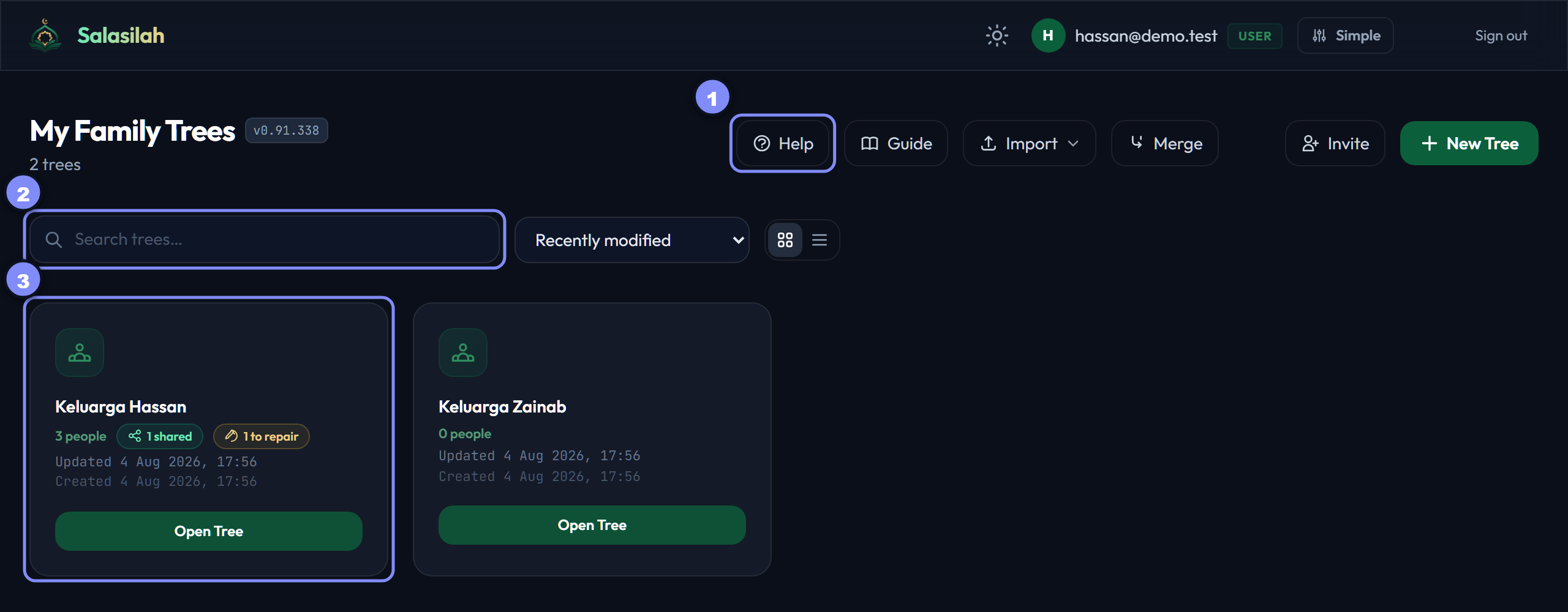
The top bar
Help — answers without leaving the page
Opens the help panel on the right. Search anything, or browse the sections. Many answers carry a Show me button that highlights the actual control on screen — useful when you know what you want but not where it lives.
Keyboard: F1.

Guide — the full users guide
Opens the written guide in the same tab: concepts, a reference for every field, the glossary, and Essentials — the index of illustrated walkthroughs like this one.
Help is for a quick answer in place; Guide is for reading properly.
Import — bring a tree in from a file
A menu with three sources: a Salasilah backup (the JSON you get from a card's Backup button, encrypted or not), a GEDCOM file from other genealogy software, or test data — a sample family to explore with.
Merge — fold one of your trees into another
For when you built or imported a small tree separately and want it inside your main one. You say which people are the same person before anything is written, and nothing happens until you approve it.
Only appears once you have two or more trees — there's no source and target to pick otherwise.
Invite — get your join link
Shows the one link that lets someone else start their own tree. Copy it and send it. It does not give them access to yours.
Full walkthrough: How to invite a friend.
New Tree — start from scratch
Name it and it opens straight into the tree editor, empty and ready for the first person. You can rename it later from its card.
Your account
Light or dark mode
The sun/moon button switches the whole app between light and dark. Remembered per browser.

Experience — Simple or Advanced
New accounts start on Simple, which keeps power-user tools off the screen. Switch to Advanced to reveal them, and back whenever you like.
Sign out
Ends your session. Your trees stay exactly as they are; sign back in with the same Google account to find them.
Finding a tree
Search your trees
Filters the cards by tree name as you type. It searches the names of your trees, not the people inside them — to find a person, open the tree and use the search there.

Sort your trees
Recently modified (the default), least recently modified, newest or oldest created, or by name A–Z / Z–A.
Grid view
The default: one roomy card per tree, with every action visible.
List view
Compact rows instead of cards — easier to scan once you have a lot of trees. The same actions are all still there. Your choice is remembered.

A tree card
Open Tree
Opens the tree itself, where you add people and draw the family out. The card's name and icon go to the same place.
The card also shows how many people are in the tree, and when it was last updated and created.
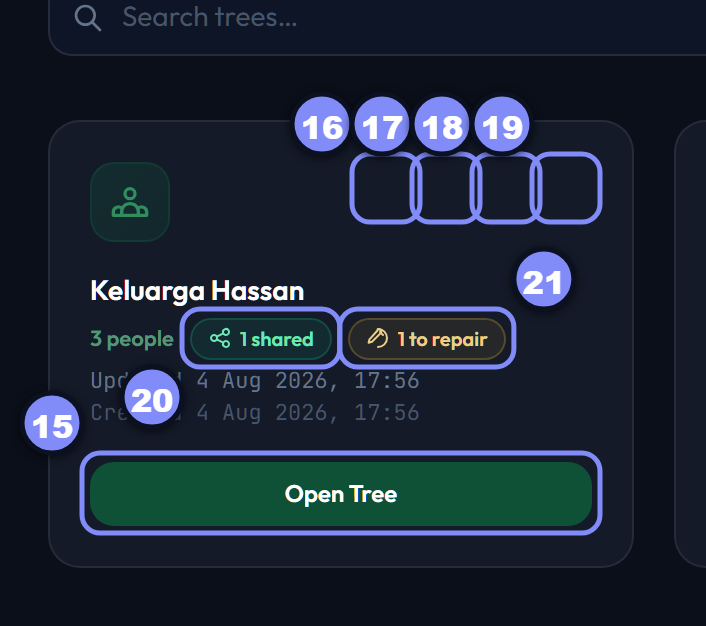
Backup — download a copy
Downloads the whole tree as a JSON file you keep. You can optionally lock it with a password. Import it later, here or on another account, to restore it.
Duplicate — make a second copy
Creates an independent copy of the tree in your own account. Handy before restructuring something, or to split a branch off and work on it separately.
Rename a tree
Changes the tree's name and nothing else. Safe at any time.
Delete a tree
Removes the tree and everyone in it.
The "shared" badge
Appears when a tree has active share links, and says how many. Click it to review them, see each link's passcode and expiry, or revoke one.
You create shares inside the tree, not here — this badge only manages what already exists. See the sharing guide.
The "to repair" badge
Appears when the tree has people who are disconnected, missing a parent, or not linked to their co-parent. Click it to open the tree with those people listed.